

Best PowerPoint to Video Converter for eCommerce Stores

Most stores have the raw material for product videos. It sits in launch decks full of approved photos, specs and talking points that nobody outside the team ever sees. Turning those decks into video is one of the cheapest ways to add video to your product pages.
The catch is picking the right tool. It depends on whether you need a one-off recording or a video you can keep updating when prices, specs and markets change.
This guide compares the three main options, names the best one for eCommerce teams and walks through the process from deck to published video.
Key takeaways
- For eCommerce, an editable AI converter is the best choice. Each slide becomes a scene you can edit, narrate from speaker notes and translate.
- PowerPoint’s built-in export works for a simple internal walkthrough. Any change means re-recording and re-exporting.
- Free online converters suit quick slideshows, but formatting often shifts and voiceover and translation are usually missing.
- Plan the video around one shopper question and one action before you convert anything.
- Check every price, spec and image licence against current, approved sources before you publish.
What to look for in a converter
Product videos go live on your store, so they face a higher bar than an internal recording. Judge any tool on four things:
- Editability: Can you change one scene without going back to PowerPoint and exporting the whole deck again?
- Narration: Does it turn speaker notes into a voiceover, or do you have to record every line yourself?
- Design fidelity: Do your layout, fonts and branding survive the conversion?
- Localization: Can you make versions in other languages without rebuilding the video?
If you sell in more than one market or change prices often, editability and localization matter most. A video that is wrong on price or spec costs you trust, and a tool that makes fixes slow means the fix does not happen.
The three options compared
Editable AI video import is the strongest fit for stores that update products often. PowerPoint’s own export and free online converters each have a narrower use.
| Option | How it works | Best for | Trade-off |
| Editable AI video import | Slides become editable scenes, with narration generated from speaker notes | Product videos you will update, translate and reuse | Slide animations must be re-added in the editor |
| PowerPoint built-in export | Record narration and timings, then export to MP4 | A one-off internal walkthrough | You record the voiceover yourself, and every change means a new export |
| Free online converters | Upload a .pptx and get a video back | Quick, simple slideshows | Formatting can shift, and voiceover and translation are usually missing |
Editable AI video import (best for eCommerce)
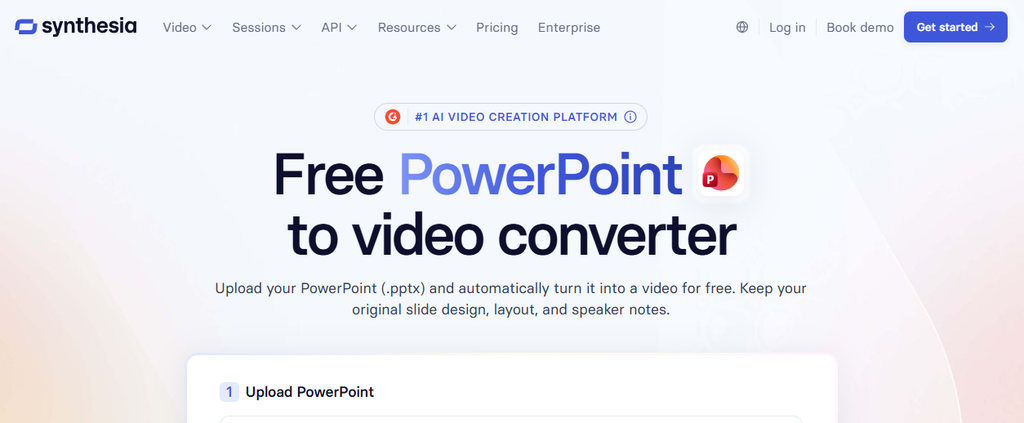
This type of tool treats the deck as a starting point rather than a finished file. Synthesia’s PowerPoint to video tool is one example. It imports each slide as a video scene, keeps your layout, fonts and branding, and turns speaker notes into synced narration using more than 1,000 AI voices.
From there you can edit the script, swap a scene or add an AI presenter from over 240 avatars. You can also translate the script and on-screen text into 140+ languages while keeping the slide layout, then download an MP4 or share a link. It is free to try, with paid plans for longer videos and more features.
The limitation: slide animations and transitions do not carry over exactly, so each slide arrives as a static scene. You recreate movement with timed scenes and visual elements inside the editor, where it is easy to adjust later.
PowerPoint’s built-in export
PowerPoint can record narration, timings and animations, then save the result through File > Export > Create a Video. It works for an internal walkthrough that someone can record cleanly in one take.
For a live store, the problem is maintenance. Every price change or spec update sends you back to the deck to record and export again, and a second language means starting over.
Free online converters
Upload a .pptx, get a video file back. Fine for a quick slideshow, but formatting can shift and voiceover and translation are usually not included. Treat the output as a draft, not a store-ready video.
The verdict
Use an editable AI converter for anything customer-facing. Product videos have to stay accurate across prices, markets and channels, and only editable scenes let you update, narrate and translate them without starting over. Keep PowerPoint’s export as a fallback for a single internal recording.
Prepare the deck before you convert
A launch deck is written for colleagues, not shoppers. Before you convert anything, decide what the video needs to do.
- Start with one shopper question. Write it the way a customer would ask it, such as “Will this bottle fit my car’s cup holder?” If the deck cannot answer it, pick another deck or plan the missing material.
- Pick one action. Decide what viewers should do next: choose a size, add to cart or read the care guide. One action keeps the ending clear and gives you something to measure.
- Audit every slide. Keep slides that answer the shopper’s question. Rewrite ones with useful but dated detail. Remove internal content such as sales targets. Recheck prices, specs and promotions, since they may have changed since launch. If your product copy needs the same cleanup, our guide on making product descriptions a conversion tool covers it.
- Confirm permissions. An image or music track licensed for an internal presentation is not automatically cleared for a public product video.
Build a four-scene storyboard
Decks tend to spend several slides on context before they reach the detail a shopper cares about. Bring that detail forward. A simple four-scene structure works for most product videos:
- Opening question: the shopper’s question as a text overlay on the product.
- Product detail: the slide or diagram that answers it.
- Demonstration: show the claim in action, such as the bottle sitting in a cup holder.
- Call to action: point to the exact page control, such as the size selector.
Rewrite speaker notes as spoken sentences before you import them. Cut internal references and read each line aloud. Notes written for a presenter often sound stiff as narration.
Convert, then check the output
Work from a copy of the deck and keep the original as your approved reference. In an editable converter, the process is short.
- Import the .pptx. In-app import accepts files up to 1GB and 150 slides. Some web uploaders cap files at 100MB, so compress oversized images first.
- Match scenes to your storyboard. Reorder or cut scenes and recreate any movement you need.
- Check the narration. Compare every line against approved product information and fix any pronunciation the voice gets wrong.
- Generate and download. Export an MP4 or use a share link.
Then review the finished file, not just the editor preview. Look for text cut off at the edges, colors that clash with your product photography and captions that drift out of sync. Watch it on a phone with the sound off, then on.
Adapt one master video for each channel
Treat the approved video as a master and cut a version for each place it will appear.
- Product page: Use the full explanatory cut and end on the relevant on-page action. Video files can slow a page down, so follow standard eCommerce site speed practices such as compression and lazy loading.
- Organic social and ads: Open with the demonstration scene, reframe for portrait and use large captions that read on a phone. If you run paid social, a Meta ads agency can help you turn the same master into ad variants.
- Email: Use a thumbnail that links to the video on the product page instead of relying on playback inside the email. Our email marketing services team builds flows and campaigns around exactly this kind of content.
- Other markets: Translate the master instead of rebuilding it. Have a native speaker review the script and caption timing before you publish. If you are planning to sell abroad, see our notes on selling globally on Shopify.
Put the video on a Shopify or Magento product page without slowing it down
A finished MP4 is only half the job. Where and how you place it on the product page decides whether it helps or hurts.
- Placement: Put the video where it answers the shopper’s question, usually in the media gallery or just below the buy box. Our guide to Shopify product page customization shows layouts that work.
- Hosting: Host the file on a video platform or CDN and embed it. Do not upload large MP4s straight into the theme.
- Loading: Lazy-load the player and use a lightweight poster image so the page renders first. Website speed affects conversion, and a heavy video can cancel out the gain it was meant to deliver.
- Images: Compress the poster and thumbnails. See our notes on image optimization for performance.
- Theme work: Some themes need a custom video block or gallery tweak. Our Shopify development services team builds these, and for Magento stores we work with Hyvä themes for fast frontends.
Measure and improve
A video you cannot measure is a guess. Keep it simple.
- Keep a log. For each video, record the source deck, destination, publish date, intended action and result. That ties every outcome to the version shoppers actually saw.
- Separate viewing data from store outcomes. Watch time shows where people drop off. Add-to-cart rate and purchases show whether the video helped the sale. Our list of eCommerce metrics covers what else to track.
- Change one thing at a time. If you replace the opening and the call to action together, you will not know which change moved the numbers. Our eCommerce A/B testing guide explains how to run clean tests.
If you would rather have a team own this, our conversion rate optimization services cover testing, analysis and rollout.
How Aureate Labs can help
Choosing a converter is the easy part. Getting video onto your store, keeping it fast and proving it sells is where most teams stall. That is the part we do.
Aureate Labs is an eCommerce agency with 15+ years of experience building and improving online stores on Shopify, Shopify Plus, Magento and headless platforms. We are also a Hyvä Gold Partner. For a video project, we typically help with:
- Store build and theme work: custom video blocks, product gallery changes and page layouts on Shopify or Magento.
- Speed: keeping pages fast after video is added, including Magento 2 performance optimization for Adobe Commerce stores.
- Conversion: testing video placement, length and calls to action with our CRO team.
- Search visibility: product page and content work through our eCommerce SEO services.
- Channels: email flows, paid social and search campaigns that use the same video master.
If you want a second pair of eyes on how video fits your store, talk to our team or browse all our eCommerce services.
FAQ
What is the best PowerPoint to video converter for eCommerce?
An editable AI converter that imports slides as scenes, narrates from speaker notes and translates the result. PowerPoint’s own export only suits one-off recordings.
Can I convert a PowerPoint to video for free?
Yes. PowerPoint’s export is free, and some AI converters are free to try, with paid plans for longer videos.
Do slide animations carry over?
PowerPoint’s export keeps them. Editable AI converters typically import static scenes, and you rebuild movement in the editor.
Can I use speaker notes as narration?
Yes, with tools that turn notes into a voiceover. Rewrite them as natural spoken sentences first.
How long should a product video be?
Long enough to answer one shopper question clearly. Test lengths for each channel instead of relying on a fixed rule.
Will a product video slow down my store?
It can, if the file is heavy or loads before the page. Host it on a video platform, lazy-load the player and compress the poster image, then check page speed before and after.






Post a Comment
Got a question? Have a feedback? Please feel free to leave your ideas, opinions, and questions in the comments section of our post! ❤️